
Changing your Mathpix Snip account information
All account information can be managed and updated in your account settings. From there you can reset your password, change your email address, update your username, manage your Snip subscription, and delete your account.
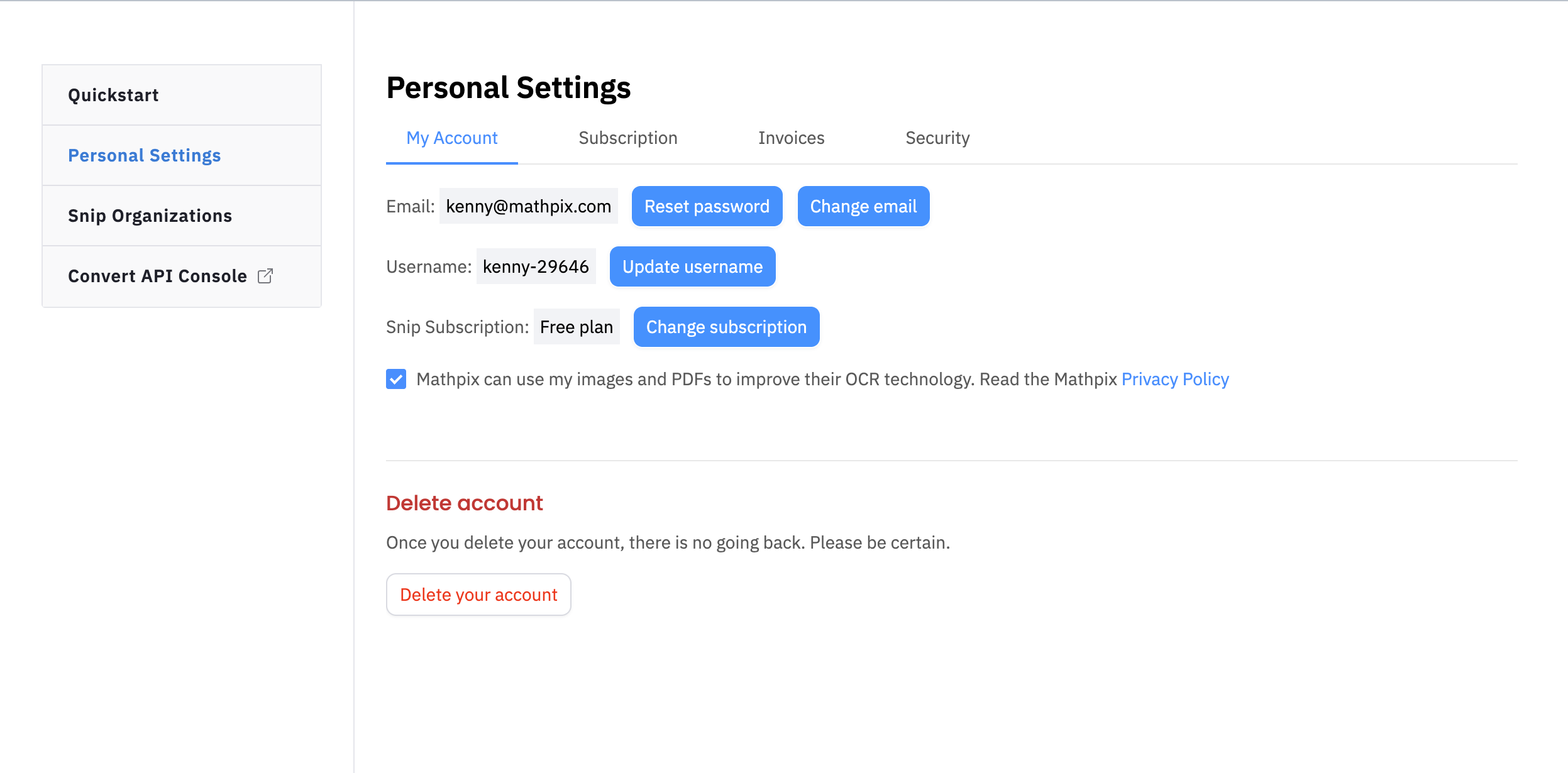
Reset your password
1. Log in to your account settings at accounts.mathpix.com/account.
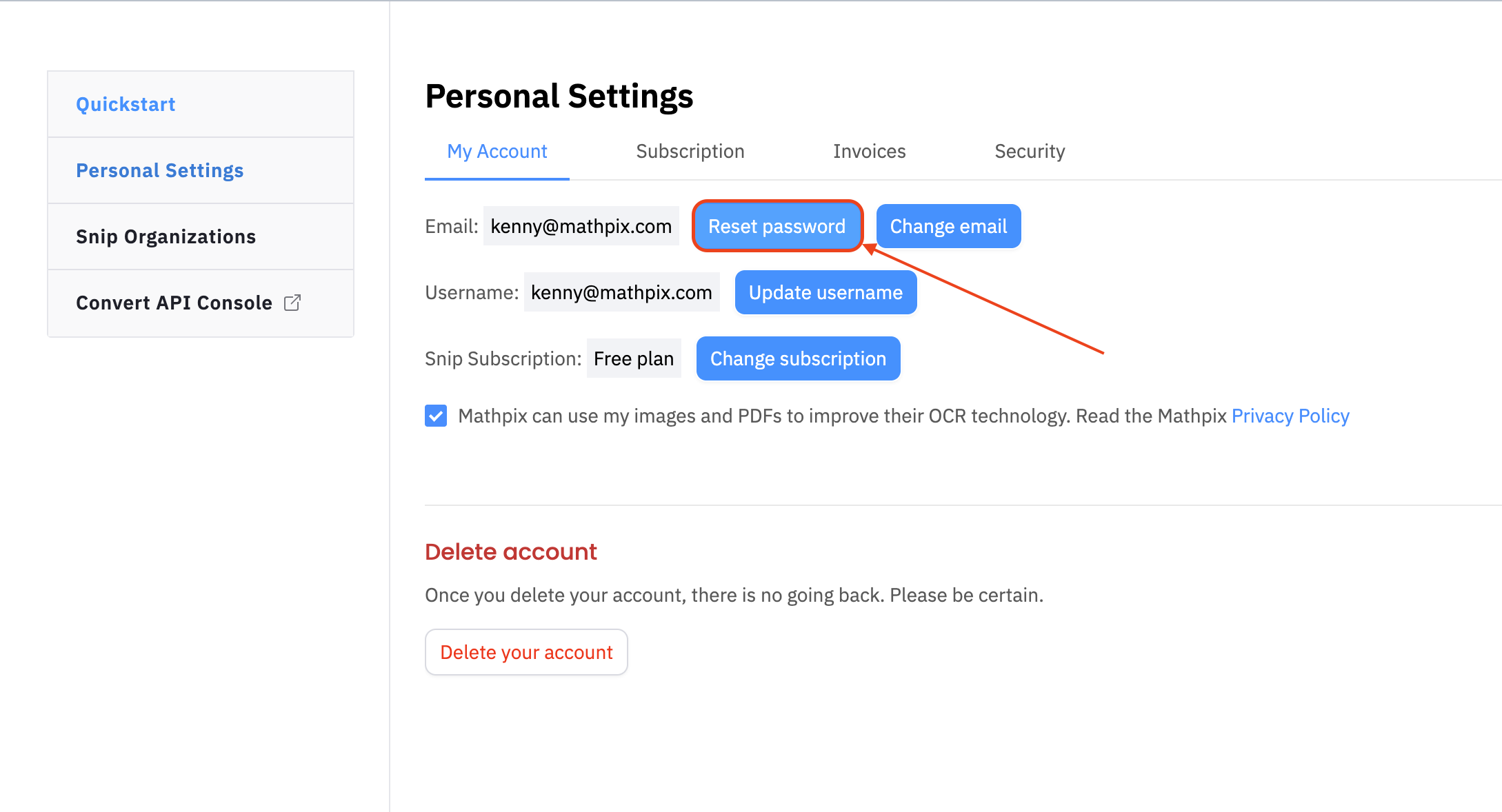
2. In the Email section at the top of the page, click the Reset password button next to your email address.
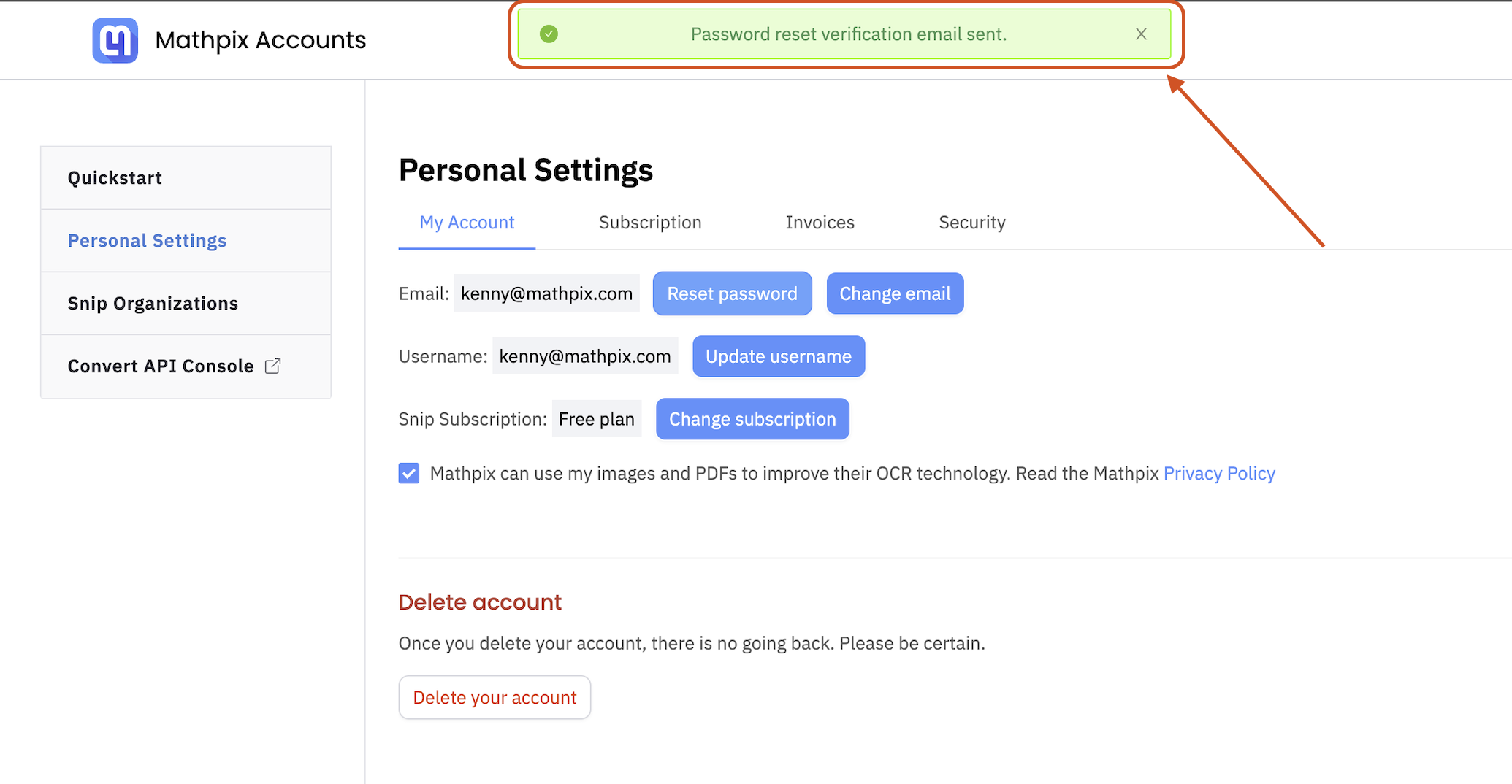
3. A confirmation banner appears at the top of the page letting you know the password-reset email has been sent.
4. Mathpix will send a password-reset link to your registered email address. Open the email and click the link.
5. Enter a new password that meets the strength requirements (8-30 characters, must include a number, lowercase letter, uppercase letter, and a special symbol).
If you don’t receive the email, check your spam folder. The link expires after a short period - request a new one if it has expired.
Change your email address
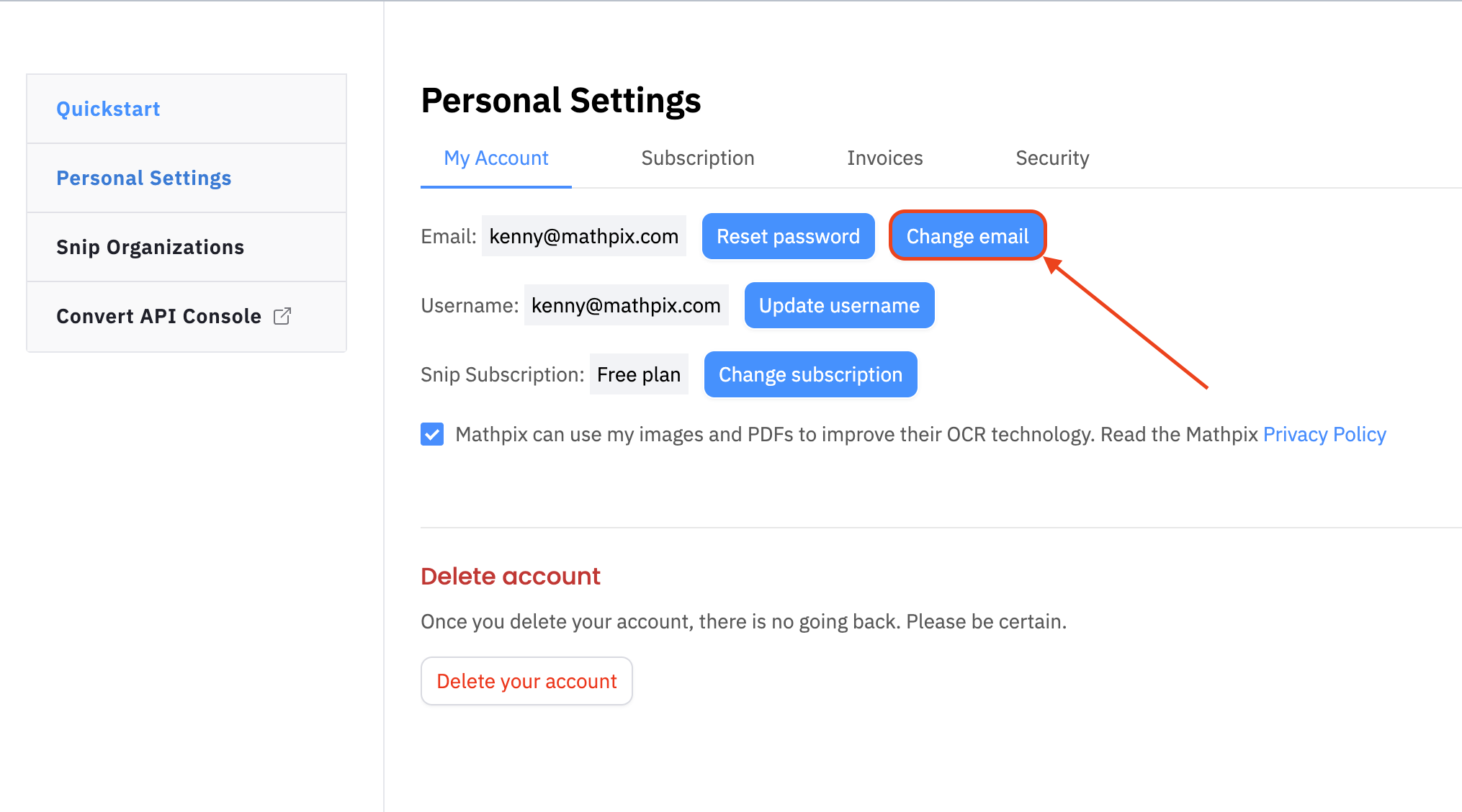
1. From your account settings, click the Change email button next to your current email address.
2. A dialog asks you to confirm that you want to change your Mathpix email address. Click Confirm to continue, or Cancel to keep your current address.
3. A modal then opens letting you know that a verification email has been sent to your current email address. This is a security check to confirm you still have access to the account before any change is made.
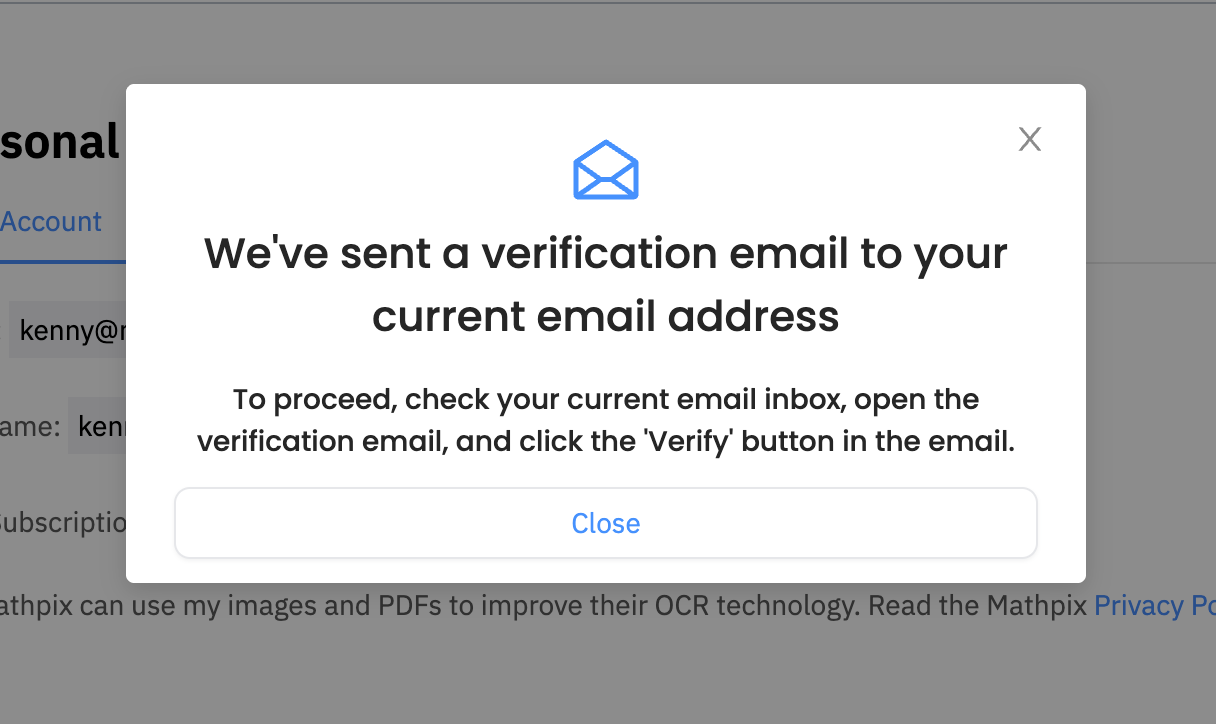
4. Open the verification email in your current inbox and click the Verify button. Follow the prompts in that flow to enter and confirm your new email address.
If you no longer have access to your current email address, contact support@mathpix.com.
Update your username
1. From your account settings, find the Username section.
2. Click the Update username button.
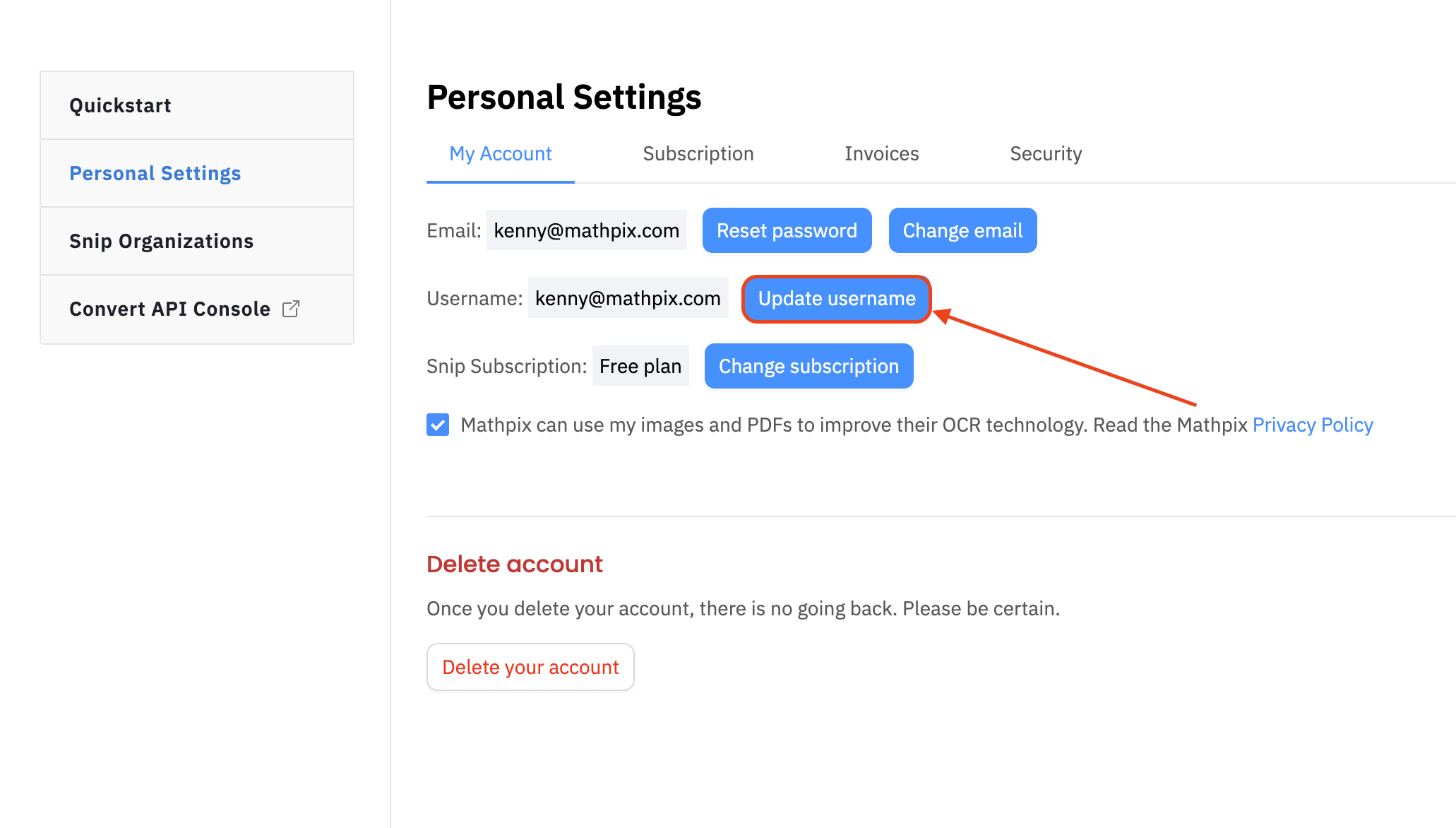
3. A modal opens with a warning and a field to enter your new username.
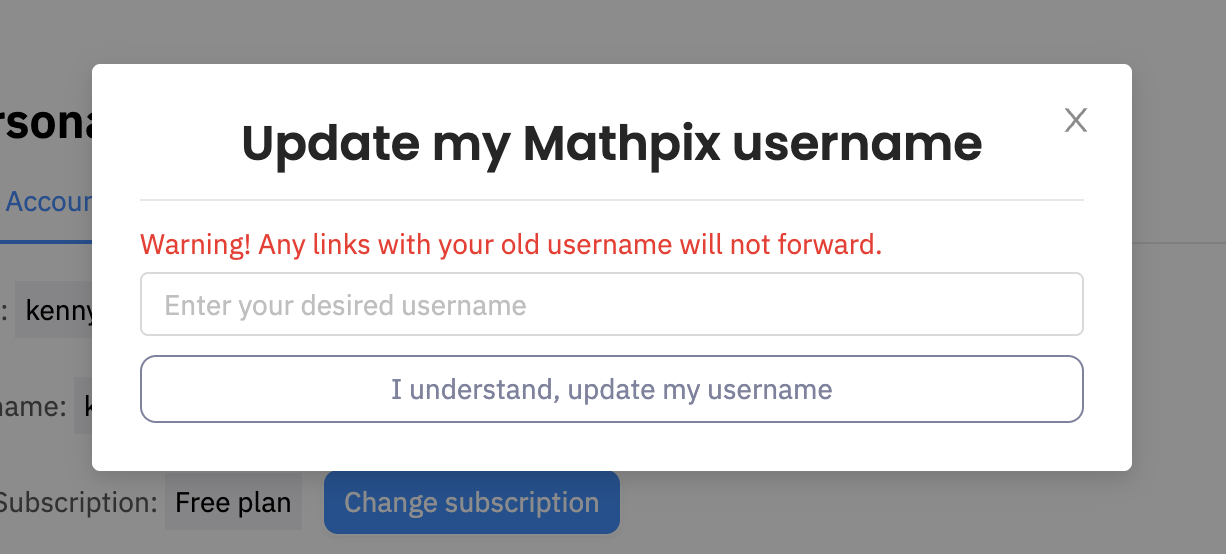
The warning - “Any links with your old username will not forward” - refers to the fact that Mathpix uses your username in URL paths for shared content, most notably Snip Notes links. If you’ve shared a note URL with someone (or pasted it into a document, message, or external tool), that link is tied to your old username and will stop working as soon as you change it - there is no automatic redirect from old-username links to new-username links.
If that’s not a concern for you, proceed.
4. Enter your desired new username and click I understand, update my username. Usernames must be unique across Mathpix accounts.
Manage your Snip subscription
The Snip Subscription section on the account settings page is where you can view your current plan and switch between Free and Pro tiers.
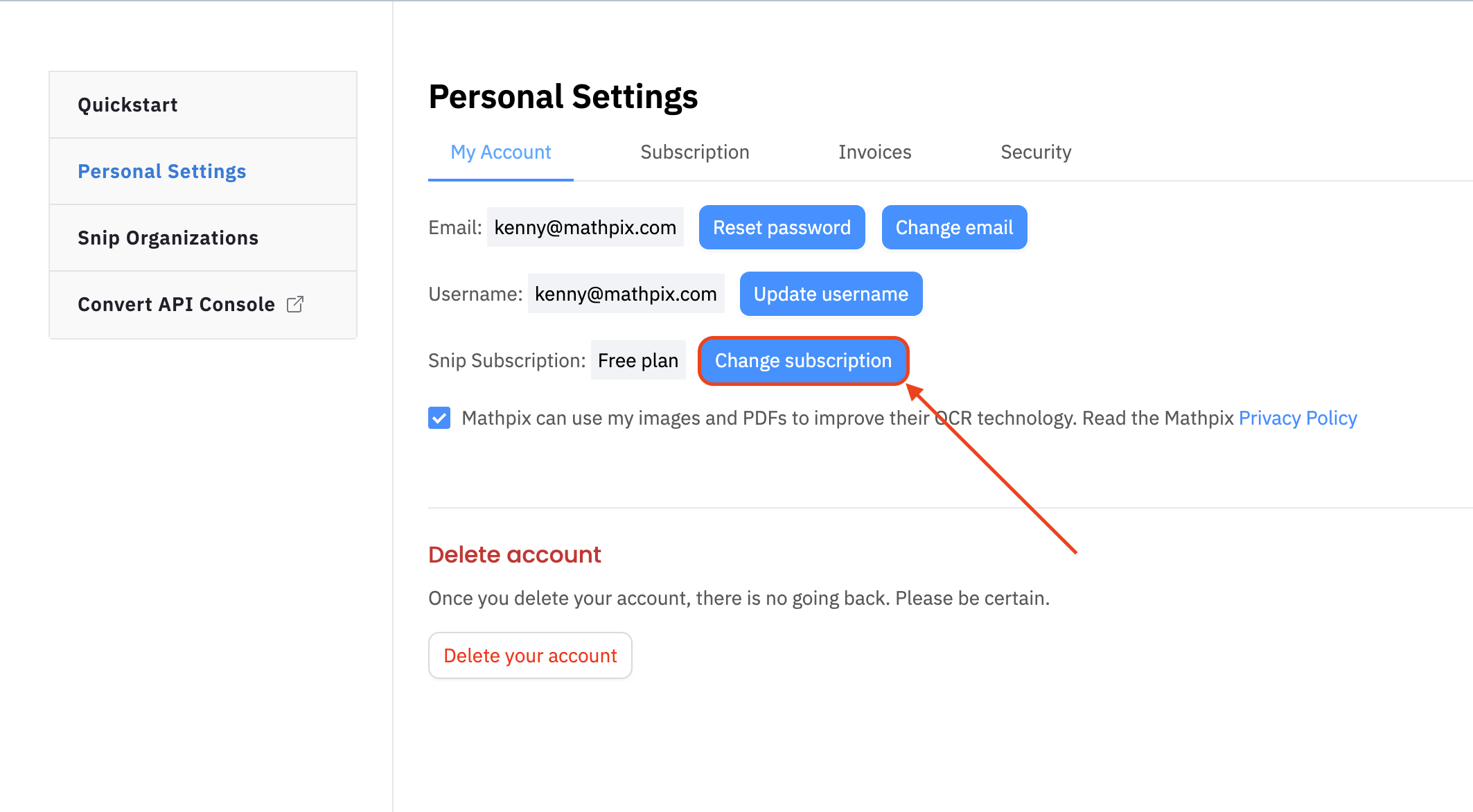
For step-by-step guides on changing your subscription, see Upgrading subscription and Downgrading subscription.
Delete your account
The Delete Account section at the bottom of the page is where you can permanently remove your Mathpix account.
For the full step-by-step deletion guide, see Deleting an account.
Note: account deletion is irreversible - deleted accounts cannot be recovered.