
Convert PDF to HTML
Convert PDF files to clean, semantic HTML with MathJax-rendered equations and responsive tables. Render on the web instantly.
- Equations render as MathJax, selectable and searchable
- Tables as real HTML tables, not images
- Reflows on a phone, unlike the PDF it came from
- Render on the web with MathJax equations
A PDF that works on the web
A PDF published on a web page is an image of a document: unsearchable, unresponsive and invisible to assistive technology. Converting it to HTML makes it a document again.

Equations as MathJax
Rendered in the browser from their source, so they scale with the text, respond to zoom and can be selected and copied.

Tables as HTML
Real table markup, which means it is searchable, styleable and readable by a screen reader.

Content that reflows on a phone
A two-column PDF is fixed at its page size. The HTML it converts to is not, so it works on a phone.
What Mathpix recognizes in PDF files
Reading order on multi-column pages
Resolved before the HTML is written, which is what lets the content reflow instead of preserving a two-column grid.
Merged cells and multi-row headers
Exported with the row and column spans they had, so complex tables stay navigable.
Captions stay with their figures
Kept with what they belong to, so a figure and its caption stay together when the layout changes.
How to convert PDF to HTML
1
Upload your PDF
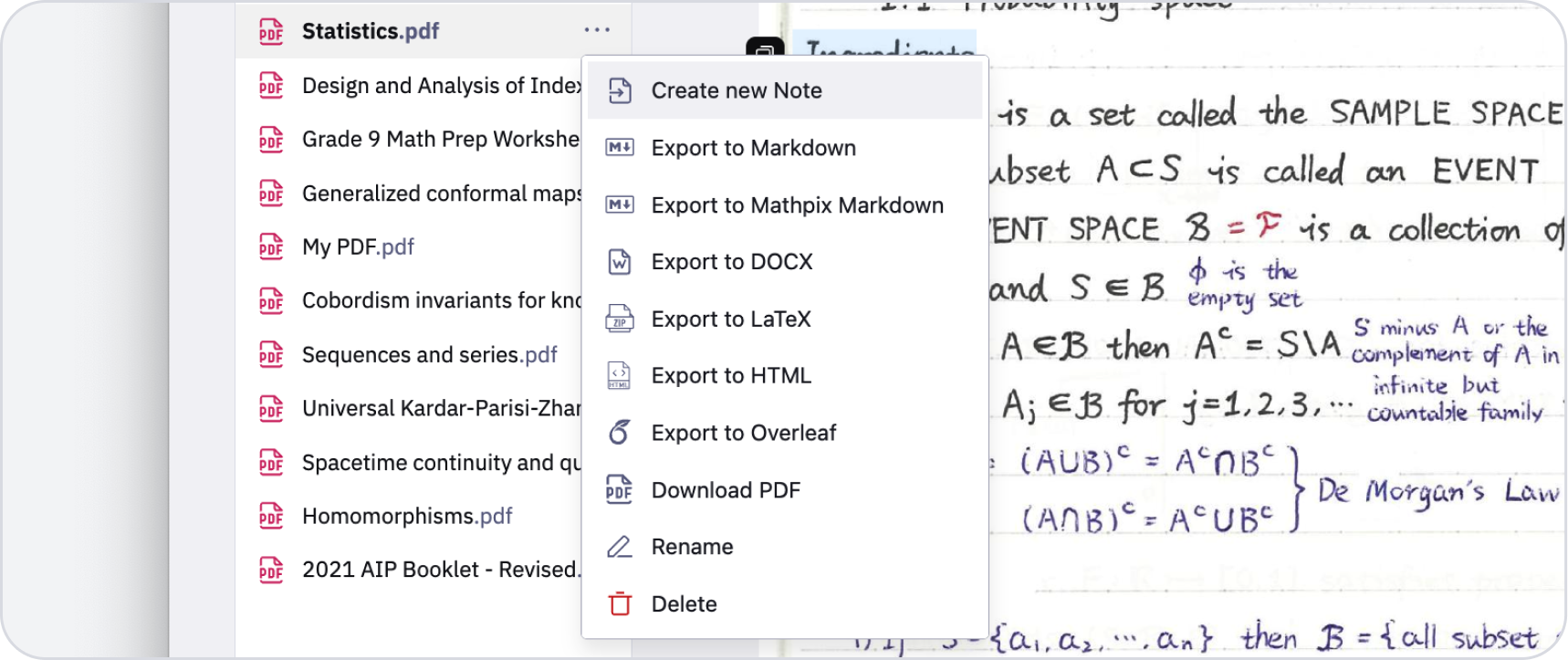
Drag it into the Mathpix Snip web editor, or pick it from your files.
2
Convert it to HTML
Recognition runs on the whole document: math, tables, figures and layout together.
3
Export or copy the HTML
Download the HTML, or copy it straight to the clipboard and paste it where you need it.
What Mathpix accepts, and the limits that apply
Which files you can send
PDF, EPUB, Word (DOCX, DOC), PowerPoint (PPTX), OpenDocument Text (ODT), DjVu, WordPerfect (WPD), Mobipocket (MOBI) and Amazon Kindle (AZW3)
What you get back
HTML, or a zip with the extracted images alongside it.
The size limits that apply
One PDF, uploaded: 1 GB
Files API, per file: 15 GB
Files API, files per job: 200,000
Our PDF to HTML conversion tools
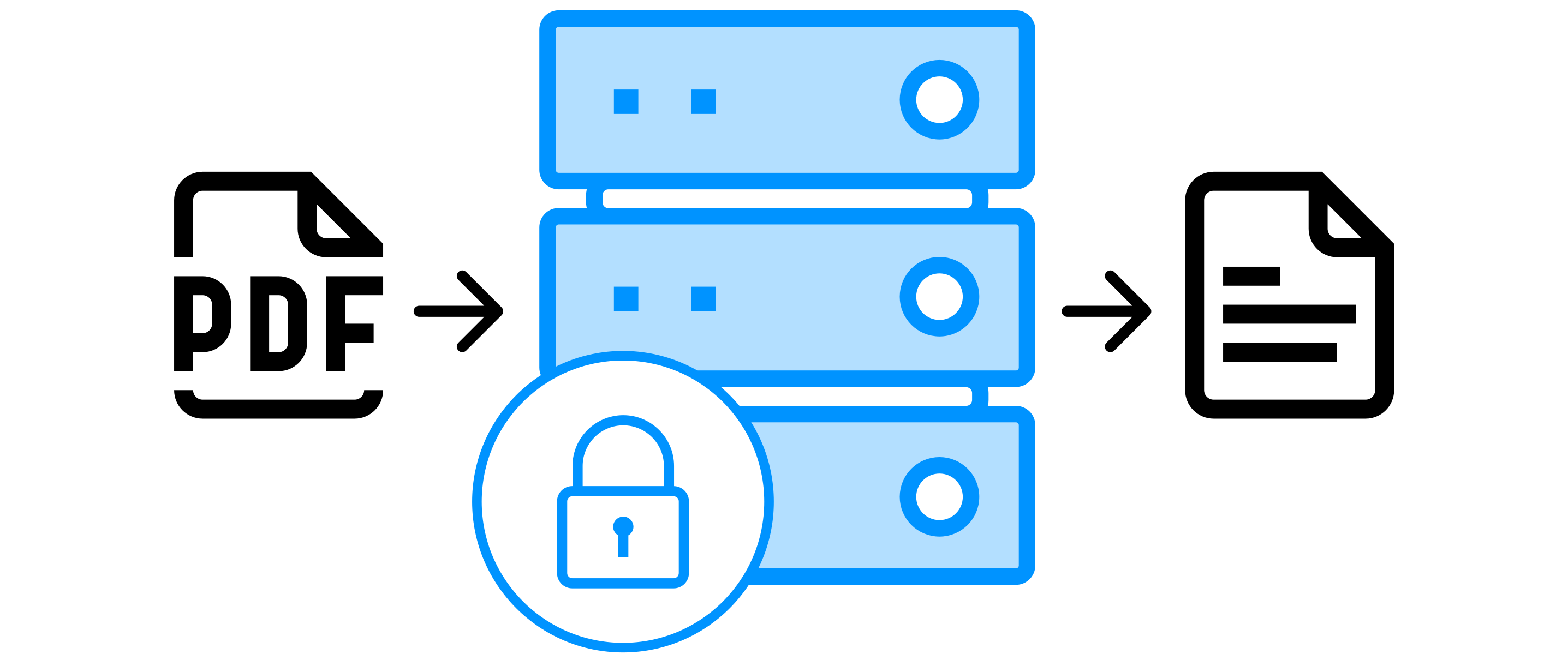
On-premise PDF Cloud
Use all PDF processing features with a self-hosted, fully contained solution.
Learn more
Converting PDF to HTML: common questions
Are the equations images or text?
Text. They are rendered by MathJax from LaTeX source, so they are selectable, searchable and readable by assistive technology.
Will it look like the PDF?
Deliberately not exactly. A PDF is laid out for a fixed page; the HTML is laid out to reflow. The content and the structure are preserved, the pagination is not.
Is the output accessible?
The structural parts are: headings are headings, tables are tables, and equations carry their source. Alt text for figures is not something recognition can invent, so that remains yours to write.