
The Mathpix OCR API is great at extracting text from scanned and image-only documents, but until now there has been no way to keep a PDF’s original layout pixel for pixel while benefitting from the text data it provides.
Today we’re adding a conversion format that addresses this gap:
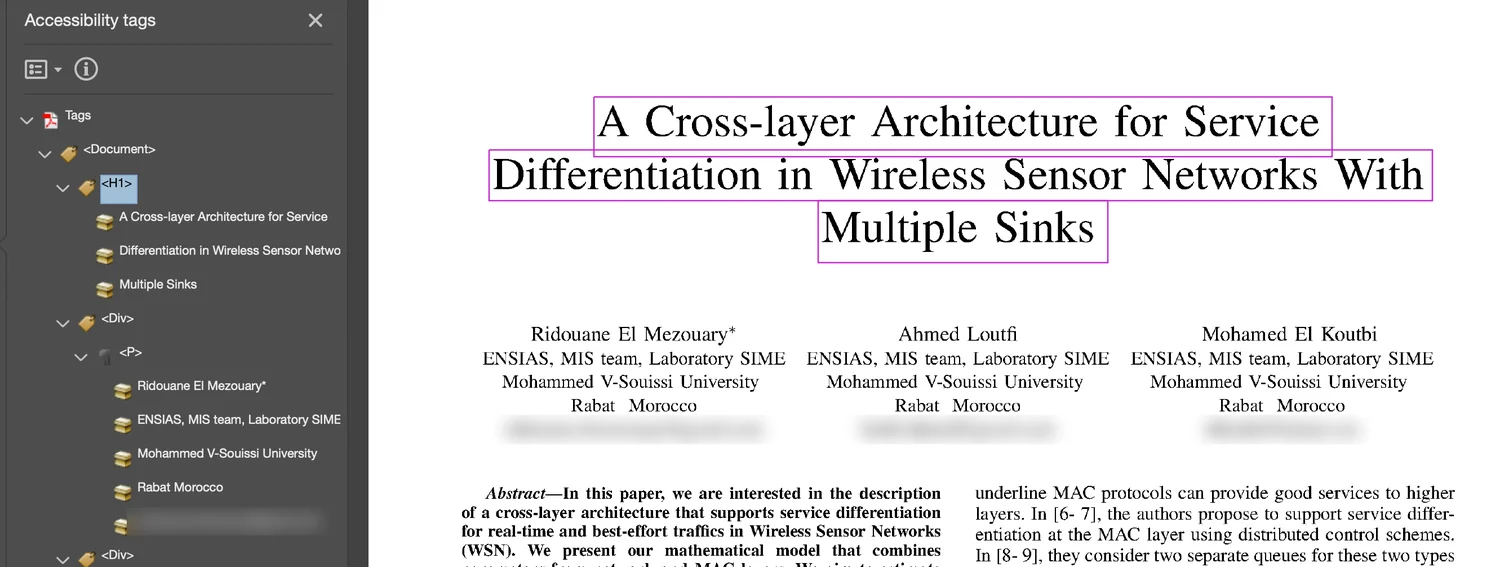
mmd.overlay.pdf returns the PDF you sent with the recognized text added as an invisible layer at the coordinates the text is printed at. It is an end-to-end way to use Mathpix OCR to turn your PDFs into fully accessible files.Before:
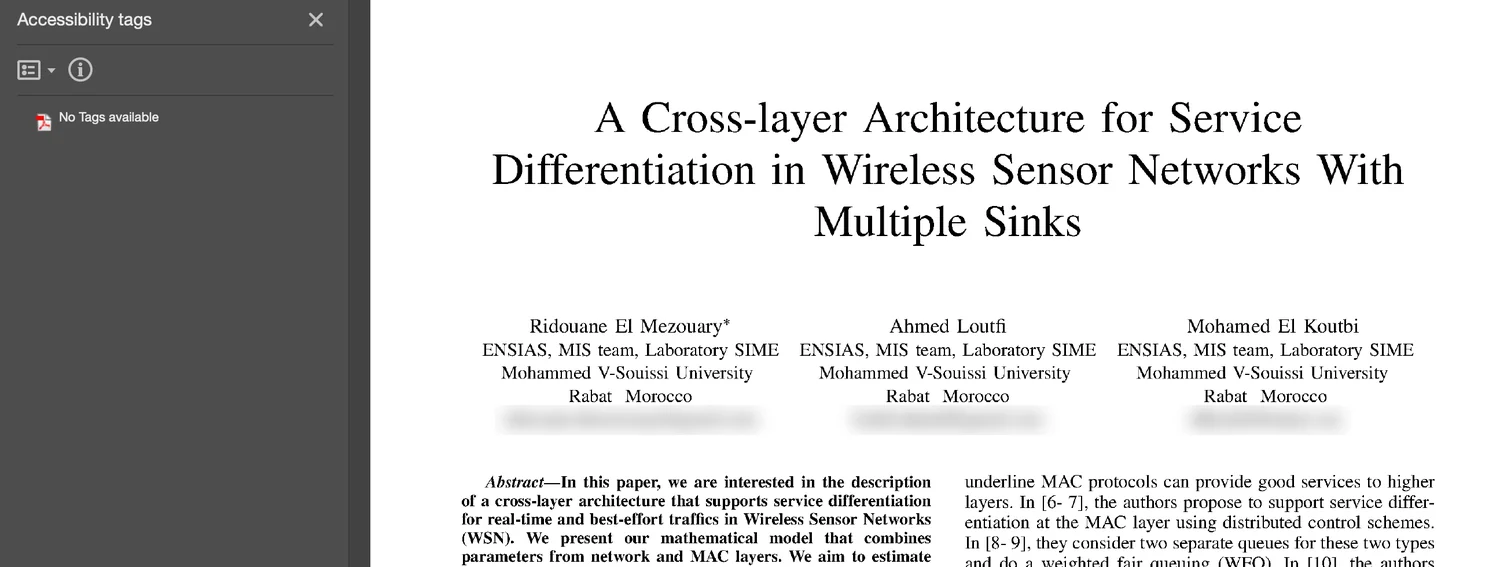
After:
How to request this format
You request this conversion format the same way as any of our other conversion formats:
curl -X POST https://api.mathpix.com/v3/pdf \
  -H "app_key: APP_KEY" \
  -F "file=@book.pdf" \
  -F 'options_json={"conversion_formats": {"mmd.overlay.pdf": true}}'
Then download it like any other format:
curl -X GET "https://api.mathpix.com/v3/pdf/PDF_ID.mmd.overlay.pdf" \
  -H "app_key: APP_KEY" -o book.accessible.pdf
Tagging
By default the document is tagged for PDF/UA, which is the difference between text a search can find and a document a person can actually read with a screen reader.
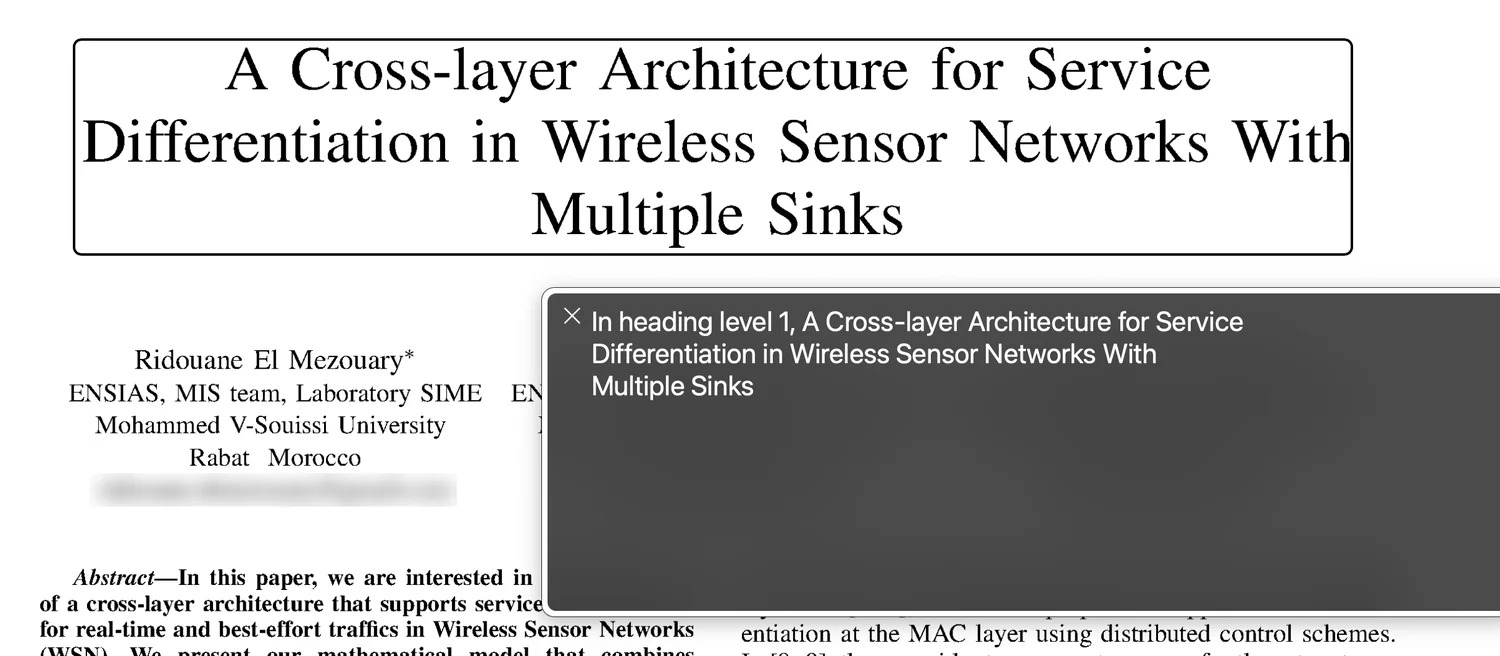
The file carries a structure tree: headings announce as headings, tables announce a data cell with the column and row headings that govern it where the table has headings to read off, lists keep their numbering, and each table-of-contents entry names the section it points at. The headings also become the document outline, so the bookmark panel opens with the file.
Where a page already carries real text, a paper, or a publisher’s own typesetting, we tag the text that is there instead of drawing ours over it. Copying gives you the characters the publisher put on the page rather than our OCR result.
Details
pdf_uachooses which version of the accessibility standard the file is built for. PDF/UA-1 is the default and the one most tools support; setpdf_ua: 2for PDF/UA-2, the newer revision, if your compliance requirements name it specifically.titlesets what a screen reader announces when the document opens.languagesets the voice it reads in. Worth setting for anything not in English, since the wrong voice makes a document close to unusable.accessible: falseturns tagging off entirely and gives you a plain searchable text layer with no structure, if that is all you want.
Request the format when you submit the document: the conversion reads your original PDF, which is otherwise deleted once the pages have been recognized.
Full documentation is in the Accessible PDF guide.
Please write to support@mathpix.com with questions or requests. Figure descriptions are the obvious next step, and we would like to hear what else would make this useful for your documents.